
KNOW WHAT TO EXPECT
Kira Talent Interview Guide
See how the Kira assessment process works, explore example screens from Kira's own help center, and prepare for your video or written responses.
Explore the processAn independent guide by ARLee Consulting, with links to Kira Talent's official applicant resources. We are not affiliated with Kira Talent or any business school.
UNDERSTAND THE PLATFORM
What is a Kira interview?
Kira Talent is a platform schools use to assess applicants. A “Kira interview” often means an asynchronous assessment: you respond to prompts on your own, rather than speaking with an interviewer in a live conversation. Kira also supports live interviews.
Your school chooses the format. You may be asked to record video answers, type written responses, or complete a combination. The question count, timing, and deadline depend on your invitation. There is no universal Kira time limit or shared set of questions for every school.
Platform overview: Kira Talent's official introduction.
FROM INVITATION TO ASSESSMENT
What happens when you open your invitation?
Review the assessment details
Open the link in your invitation and review the information under Learn More. Confirm the requirements and deadline before you plan your session.
Work through check-in
Check-in does not automatically start the real assessment. Depending on your school's setup, you may see a welcome video, registration, device checks, and other required steps. Complete them in the order shown.
Check your camera and microphone
Use Device Setup to select your equipment and make a sample recording. Play it back to check that you can both see and hear yourself. See Kira's device setup instructions.
Use official practice, when available
A practice step may be included before the real assessment. Use it to learn the actual platform's controls and transitions. Availability depends on the school's configuration.
Begin when your setup is ready
Check the instructions again before starting. Treat the real responses differently from practice: do not assume you can retry or replay them.
Official walkthrough: Kira's check-in and registration guide.
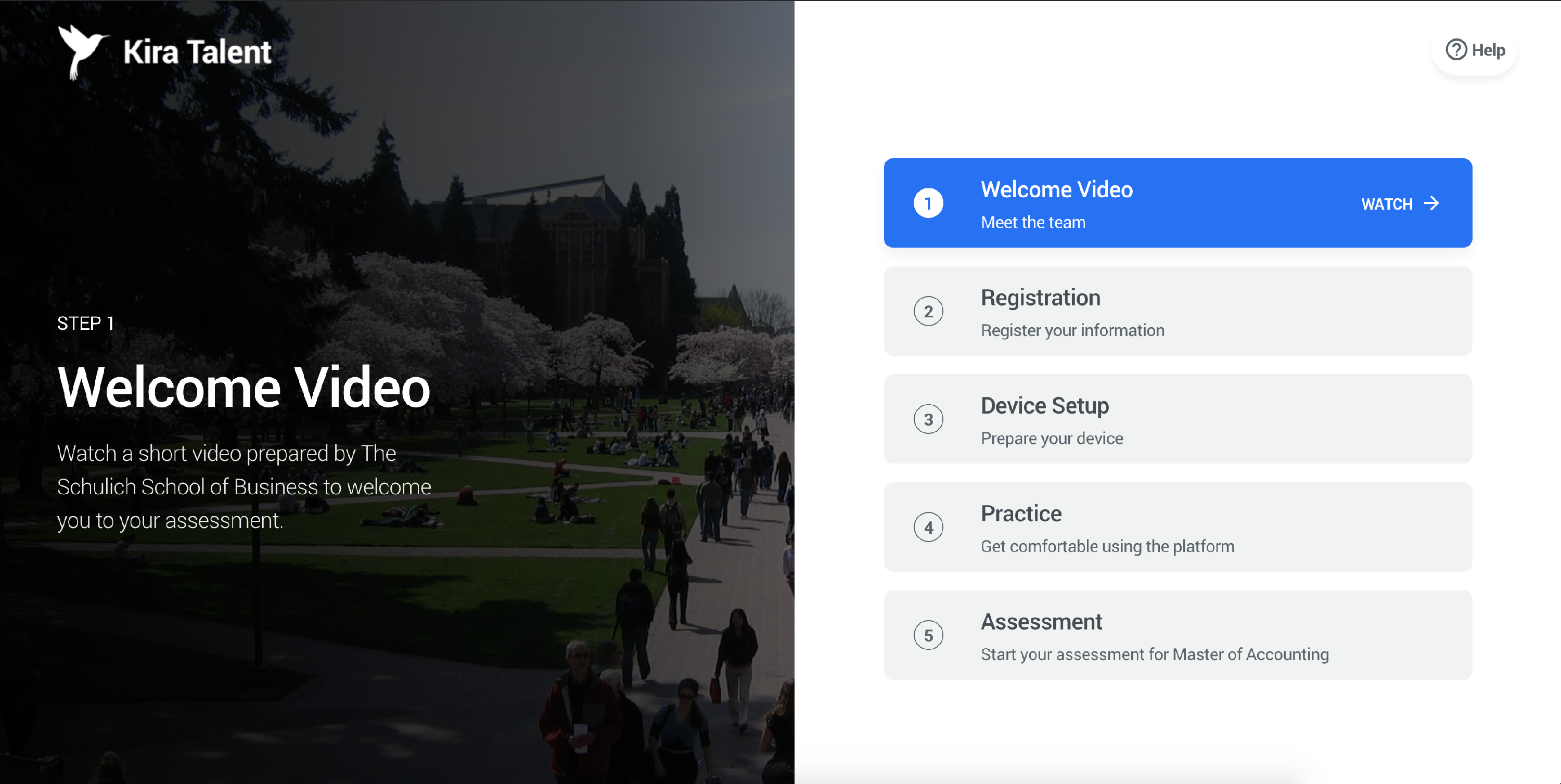
A LOOK AT THE INTERFACE
Video and written responses work differently
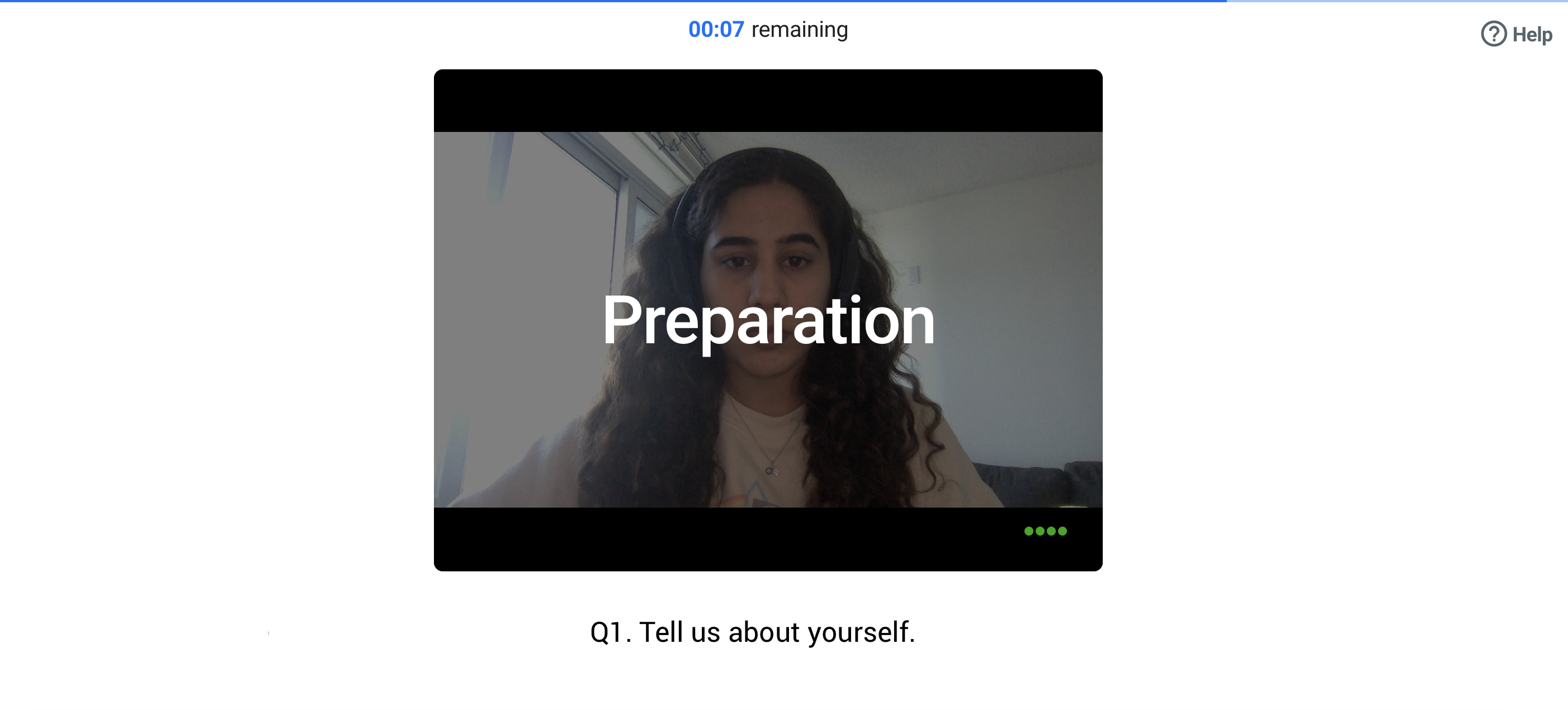
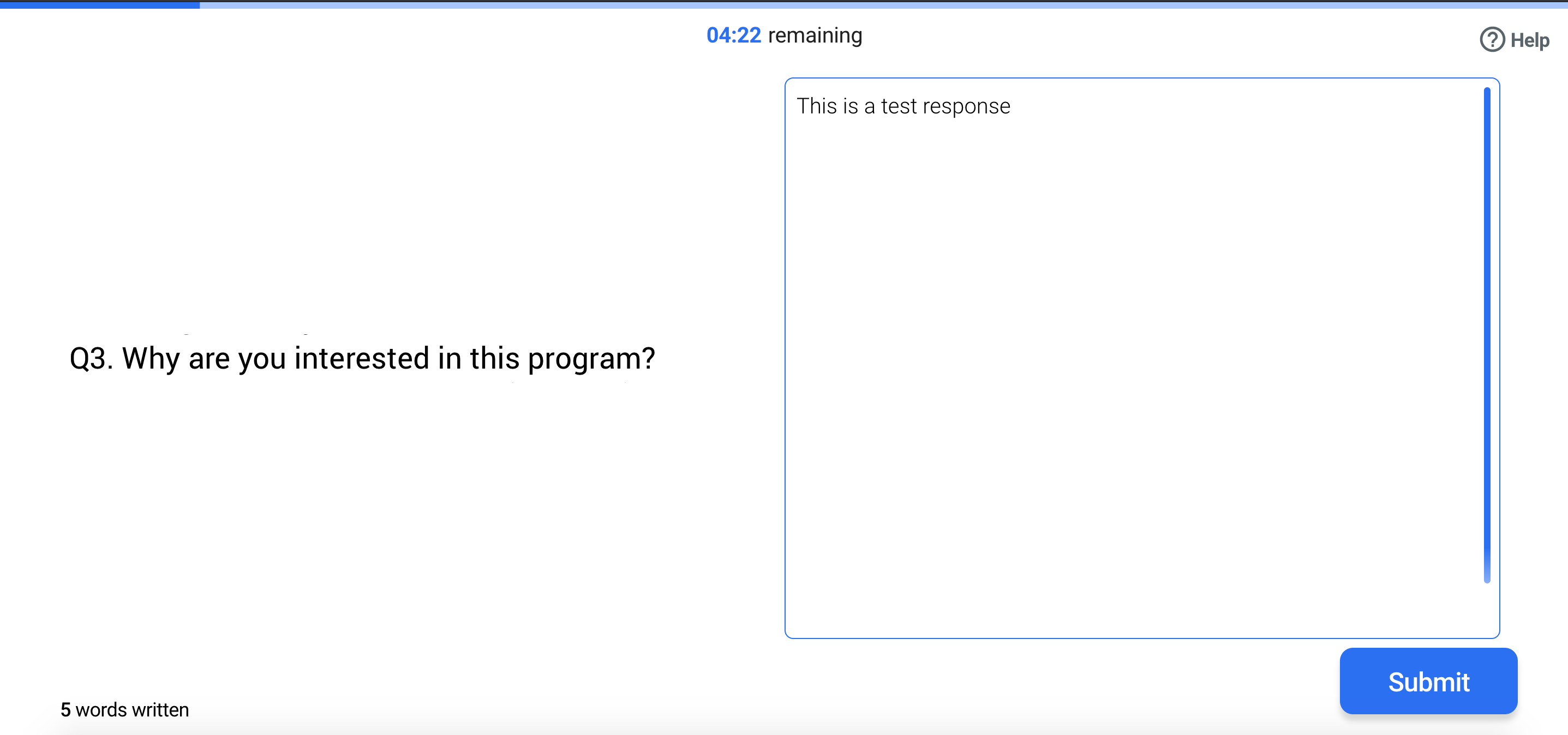
These are actual example screenshots published in Kira's help center, not mockups of our practice tool. They illustrate the interface rather than a particular school's current assessment. Branding, layout, prompts, and timers can vary.
Video questions
In Kira's asynchronous video format, a recorded question plays once and the prompt text remains visible. A countdown shows preparation and response time. You then record your answer using your camera. The example below shows the preparation stage; the time displayed is not a standard allowance for every assessment.
Written questions
Written questions use a text-entry area instead of a recorded video answer. Kira's guide describes a response countdown with no separate preparation period. Your answer submits when time runs out; the platform also provides a Submit control.
ADVICE FROM KIRA
How Kira recommends preparing
The points below summarize Kira's own applicant guidance. Follow the requirements in your school's invitation if they are more specific.
Make room to concentrate
Choose a quiet place where you will not be interrupted. Close other applications that might use your camera, microphone, or connection.
Check the picture and sound
Place light in front of you, use a simple background, and frame your face and shoulders. Review a sample recording before the real assessment.
Follow the assessment instructions
Review the question types, timing, and requirements in your invitation. Use those instructions rather than another school's format when planning your session.
Try the official practice
When your invitation includes practice, use it to get familiar with the controls, preparation stage, and transition to a response. It is the place to check how the actual platform works.
Read Kira's full guidance on preparing for an assessment, lighting and camera position, and device setup.
For help choosing examples, structuring answers, and speaking naturally, use our MBA video interview tips guide.
Know what practice can and cannot tell you
Kira's practice step can allow retries and playback. Its real assessment does not offer the same opportunity to redo or review responses. Practice prompts and time limits may differ from the real assessment, and some schools do not include a practice step at all.
Source: Kira's practice assessment guidance.
Allow time to get ready
Kira suggests setting aside 15–30 minutes for your first check-in, in addition to the assessment itself. Check your invitation for the expected assessment length. If you need an accommodation or cannot meet the requirements, contact your school before the deadline.
Source: Kira's timing and check-in guidance.
PUT YOUR PREPARATION INTO PRACTICE
Practice your school's video format
Use our school pages for free timed video practice and school-specific guidance. These links cover the programs supported by My Video Interview Prep; they are not a definitive list of schools using Kira Talent.
Our independent simulators help you practice spoken responses and optionally review recordings locally. They do not reproduce Kira's interface, submit anything to your school, or simulate written assessments.
KIRA GUIDE FAQ
Common questions
Does opening my invitation start the assessment?
No. Kira's check-in guide explains that you have steps to complete before beginning the real assessment. Read the instructions and requirements on your own invitation.
Do all schools use the same questions and timers?
No. Your school configures its assessment. Check your invitation for the question types, timing, and deadline rather than using another school's format as a rule.
Can I retry an answer?
Kira's official practice can allow retries. Do not assume the same applies to your real assessment: Kira's applicant guidance says real responses cannot be replayed or redone.
Are the screenshots exactly what I will see?
They are example screens from Kira's Applicant Help Center. Your school may use different branding, steps, prompts, timers, or a different interface version.
Who can help with a technical problem?
Use Kira's official support guidance for platform issues. Contact your school about deadlines, accommodations, or assessment requirements. ARLee Consulting does not operate Kira or control your application.